Blog → CSS tweaks for the Vivaldi browser
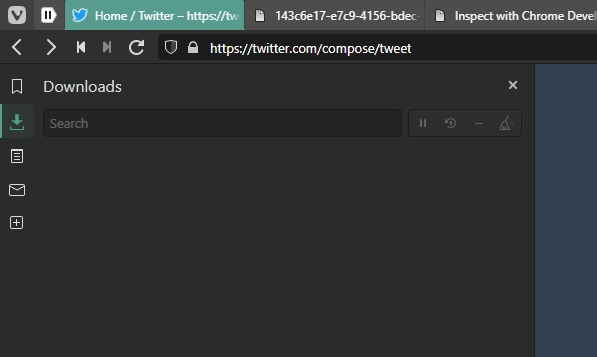
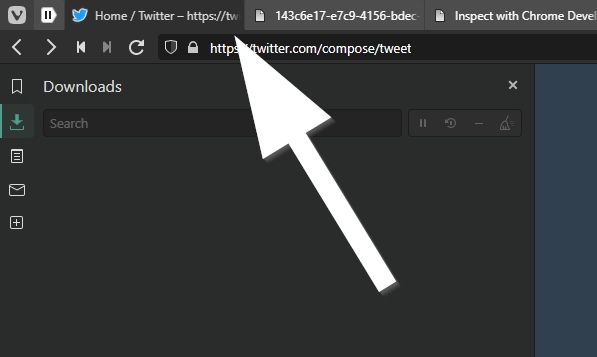
Mini-instructions on how to make your own adjustments to the Vivaldi browser interface. Today I wanted to change the color of the active tab to a more visible one.
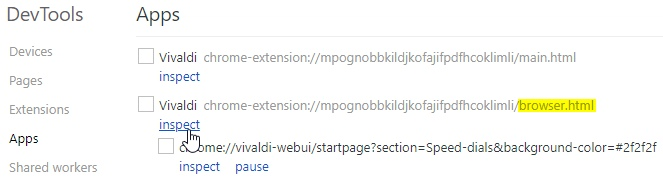
1) Open the page vivaldi://inspect/. Go to the Apps tab, find the line ending with browser.html, and click Inspect.
2) Yes, these are the developer tools applied directly to the browser’s own interface! Find the active tab and you’ll see it’s just a element with the classes tab and active.
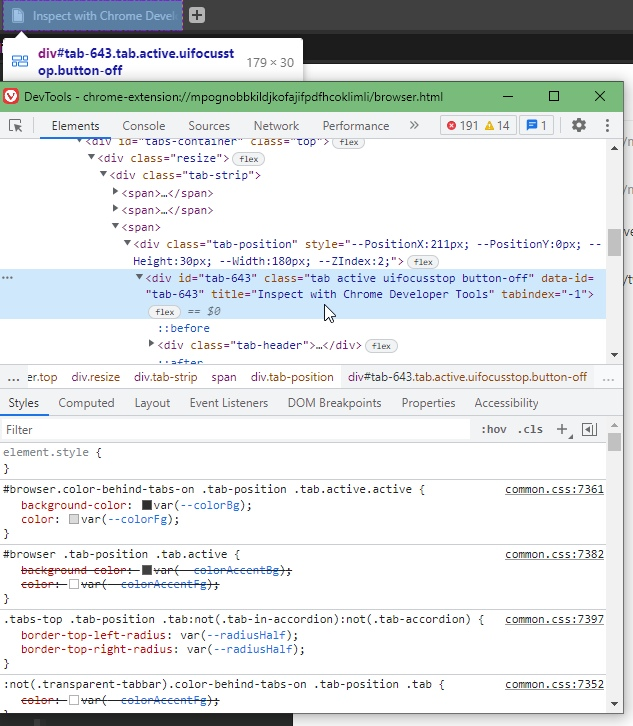
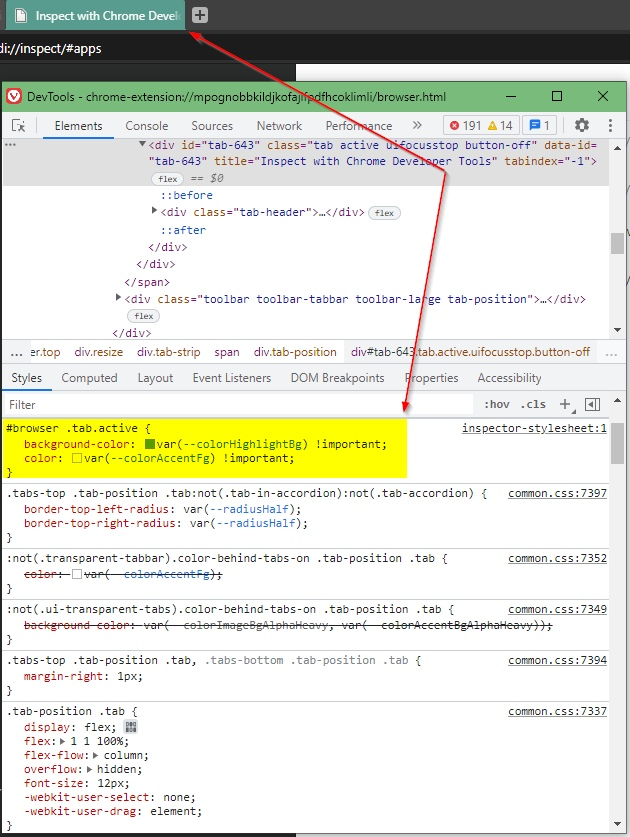
3) Right in the inspector, add a simple CSS rule that overrides the background and text colors of the active tab. I didn’t use fixed values but theme variables instead, so the colors can be changed later in the settings.
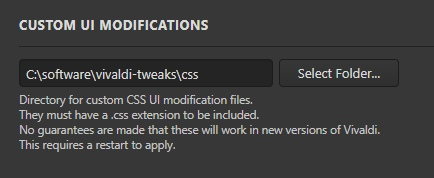
4) Create a separate folder for your tweaks — in my case it’s c:\software\vivaldi-tweaks\css, but any location will do. Inside it, make a new CSS file (for example, active-tab-highlight.css) and paste your rule into it.
5) Open the page vivaldi://experiments. Enable the first checkbox.
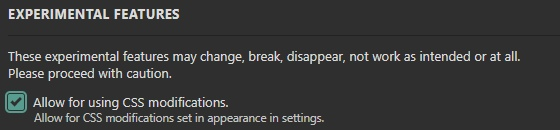
Restart the browser, go to Settings / Appearance) and you’ll see an option to set the path for CSS modifications. Point it to the folder you created earlier, then restart the browser again.
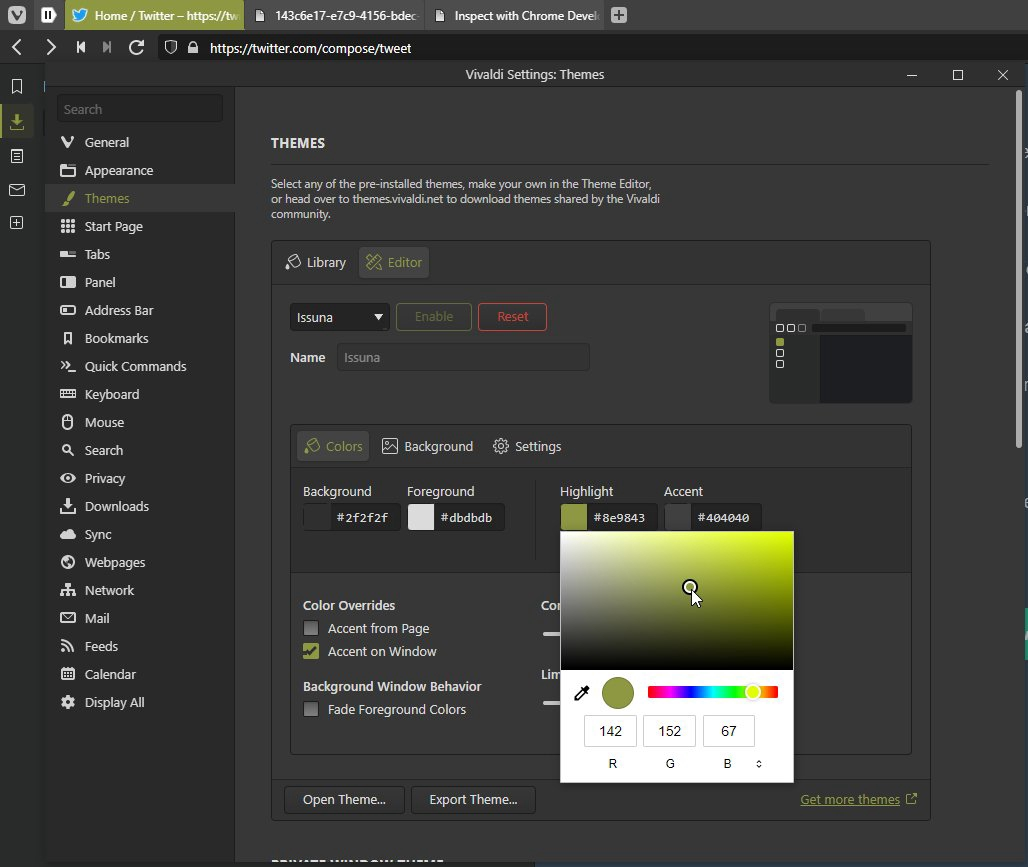
All set! Now the active tab is highlighted with the Highlight color from your theme settings. And the best part – you can change it on the fly, right in the settings (see the second screenshot).